
How Quick Start works
Quick Start simplifies the early stages of design by focusing on your idea first.
You:
- select a template
- add your idea (text and/or reference image)
- receive 4 design concepts instantly
Each concept is structured around a real product, so you can move forward with it directly.
How to use Quick Start
Quick Start is available inside the design flow.
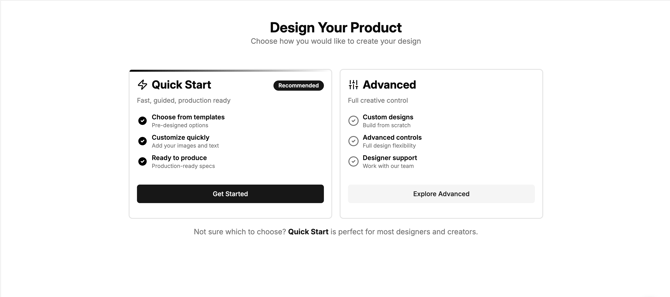
- Enter the design flow
- Select Quick Start
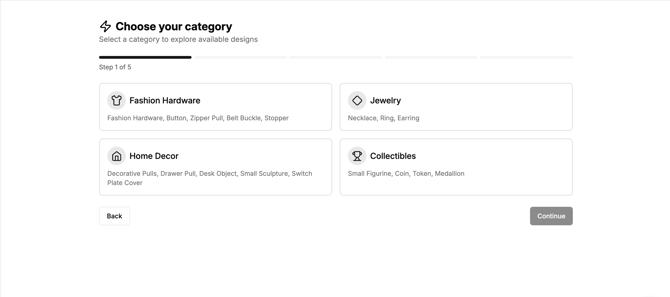
- Choose a product category
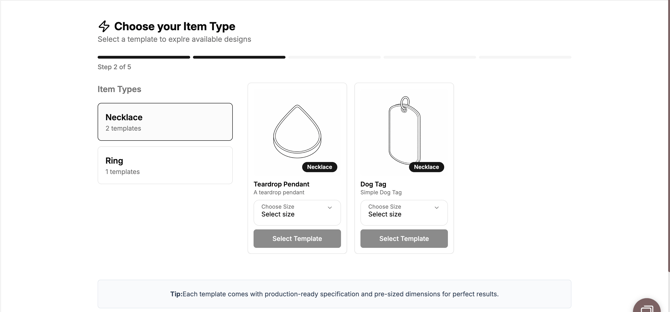
- Select a template
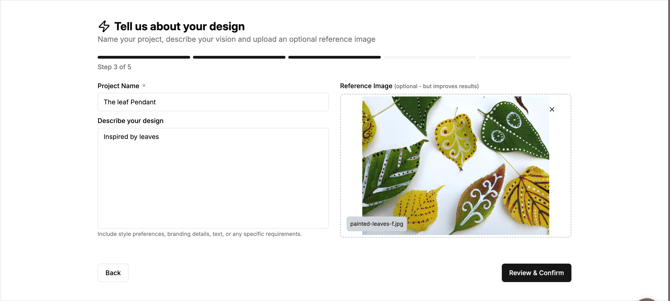
- Add your idea:
- text description
- optional reference image
- Review your design details and click Generate
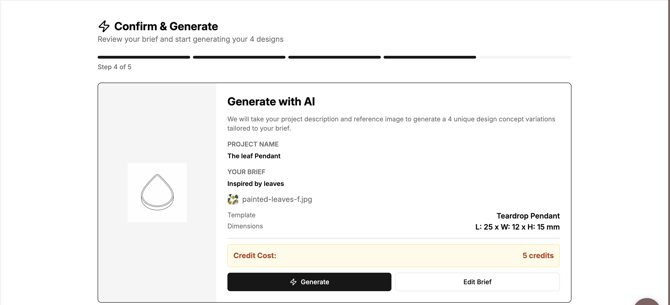
What happens next
- You’ll receive 4 design variations
- Each variation is applied to your selected template
- Select the design you want to move forward with
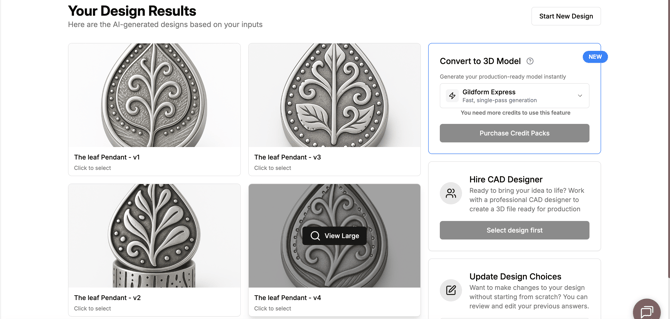
After selecting a design
Once you’ve chosen a design, you can:
- convert it into a 3D model
- customize materials and finishes
- move into production
Using reference images
You can upload a reference image to help guide your design.
(The image is not copied directly — it’s interpreted and applied to the selected template.)
Good reference images include:
- sketches or drawings
- patterns, textures, or surface details
- existing products for inspiration
- symbols, logos, or visual motifs
Tips for best results
- Keep your idea clear and focused
- Use reference images that highlight the key elements you want
- Choose a template that closely matches your intended product